

Choosing a Content Layout (Only for Hero and Detail Layout)
The last section of your content source page is the content section. The content section displays all top level Confluence pages (and optionally all second level pages) of your content source.
You can choose between three different content layout styles. Each layout style will create a different experience for the users who navigate your help center.
Use the previews below to help you decide which layout style best suits your users' requirements or preferences.
Tile
List
Accordion
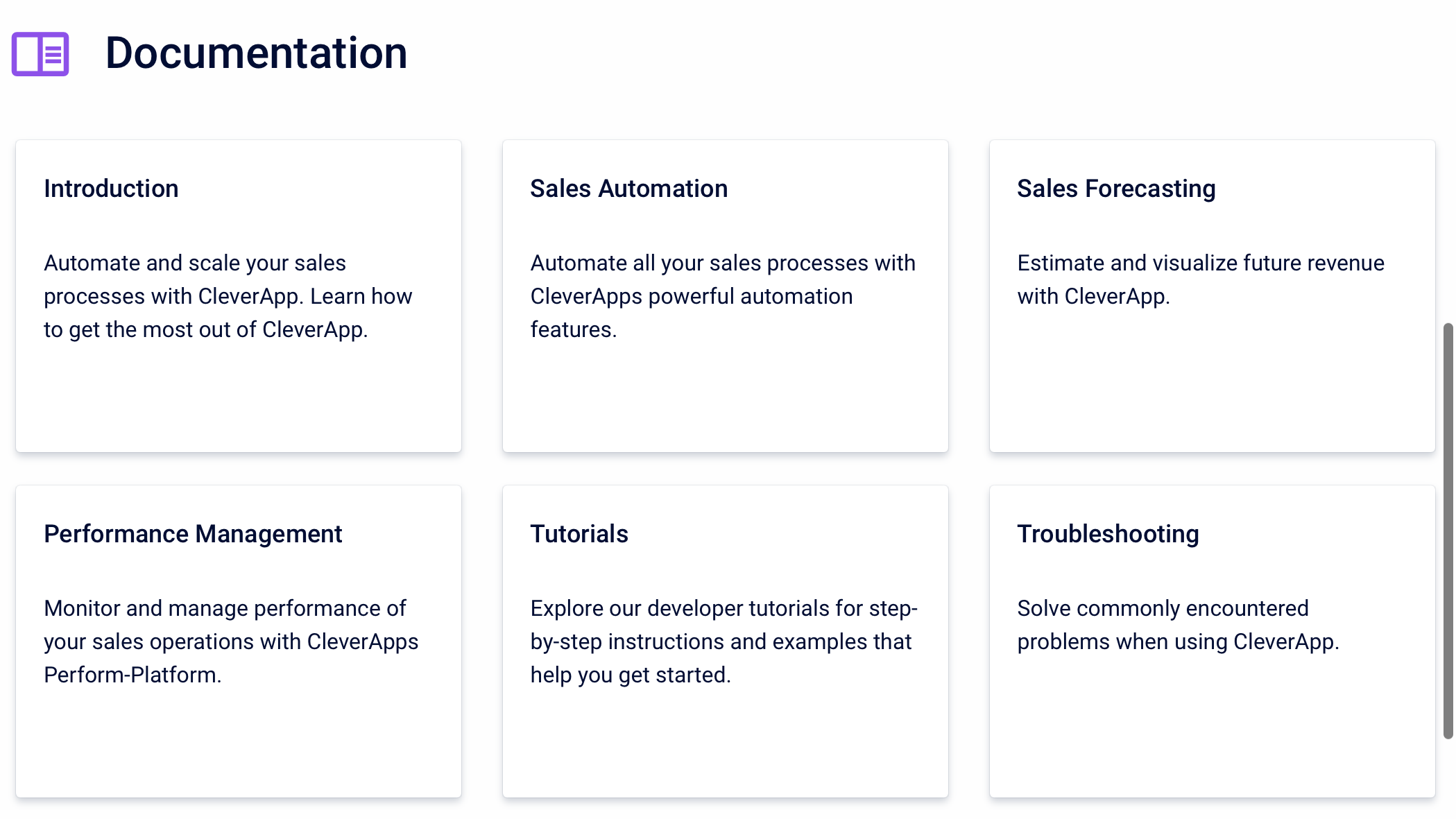
The Tiles content layout style will show the top level Confluence pages of your content source as clickable tiles.
The tiles include the article title and description.
-
The Confluence page title is displayed as the article title.
-
The first lines of content in your Confluence page is displayed as the article description.
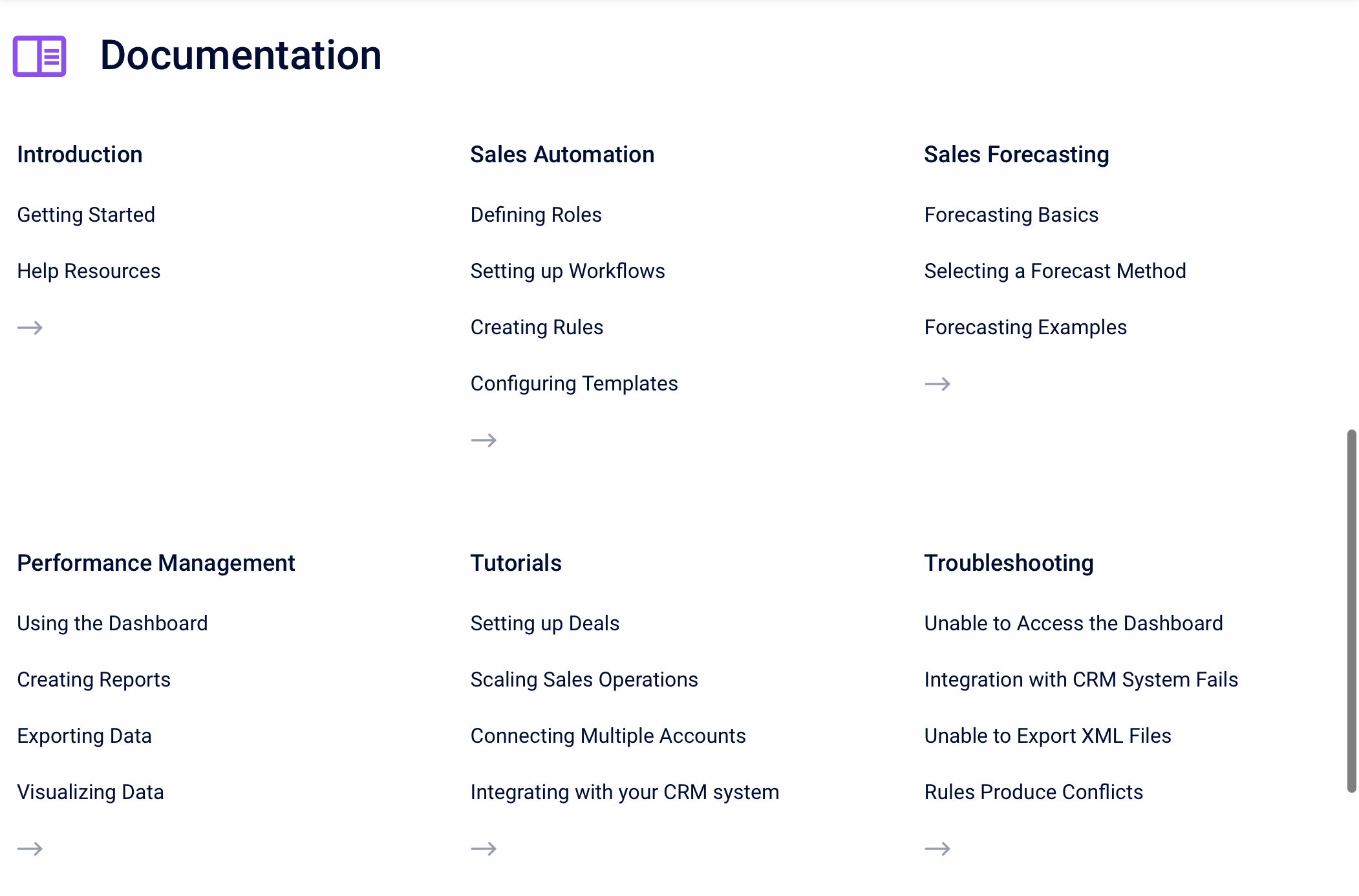
The List content layout style will show both the top level Confluence pages of your content source as well as the first four child pages nested below them.
A top level page will only show if it has at least one child page nested below it.
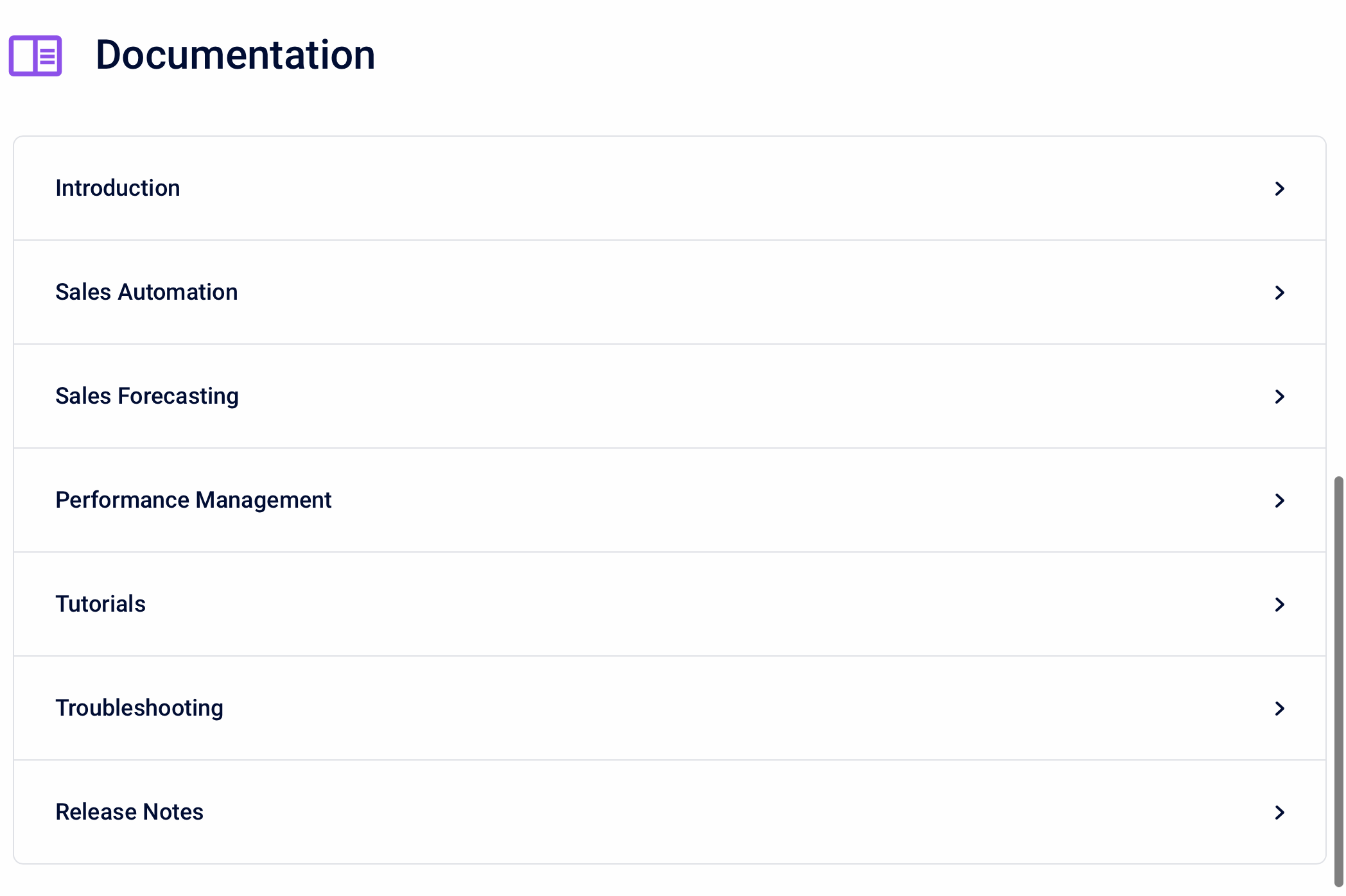
The Accordion content layout style will show the top-level Confluence pages of your content source as sections in an accordion menu. The menu can expanded to show the child pages.
The content hierarchy and content titles can only be changed in Confluence.
To change the content hierarchy, reorder the pages in your Conflunece space or organize the page tree of your Scroll Document. To change the content titles, set a different page title for the underlying Confluence page.